How to set up an ETS2 and ATS dashboard on a second screen
Updated:
A second screen keeps the road clear: speed, fuel and route on one side, the game on the other. These are the main ways to do it in Euro Truck Simulator 2 and American Truck Simulator, and how to set it up with Truckly.
Why use a second screen
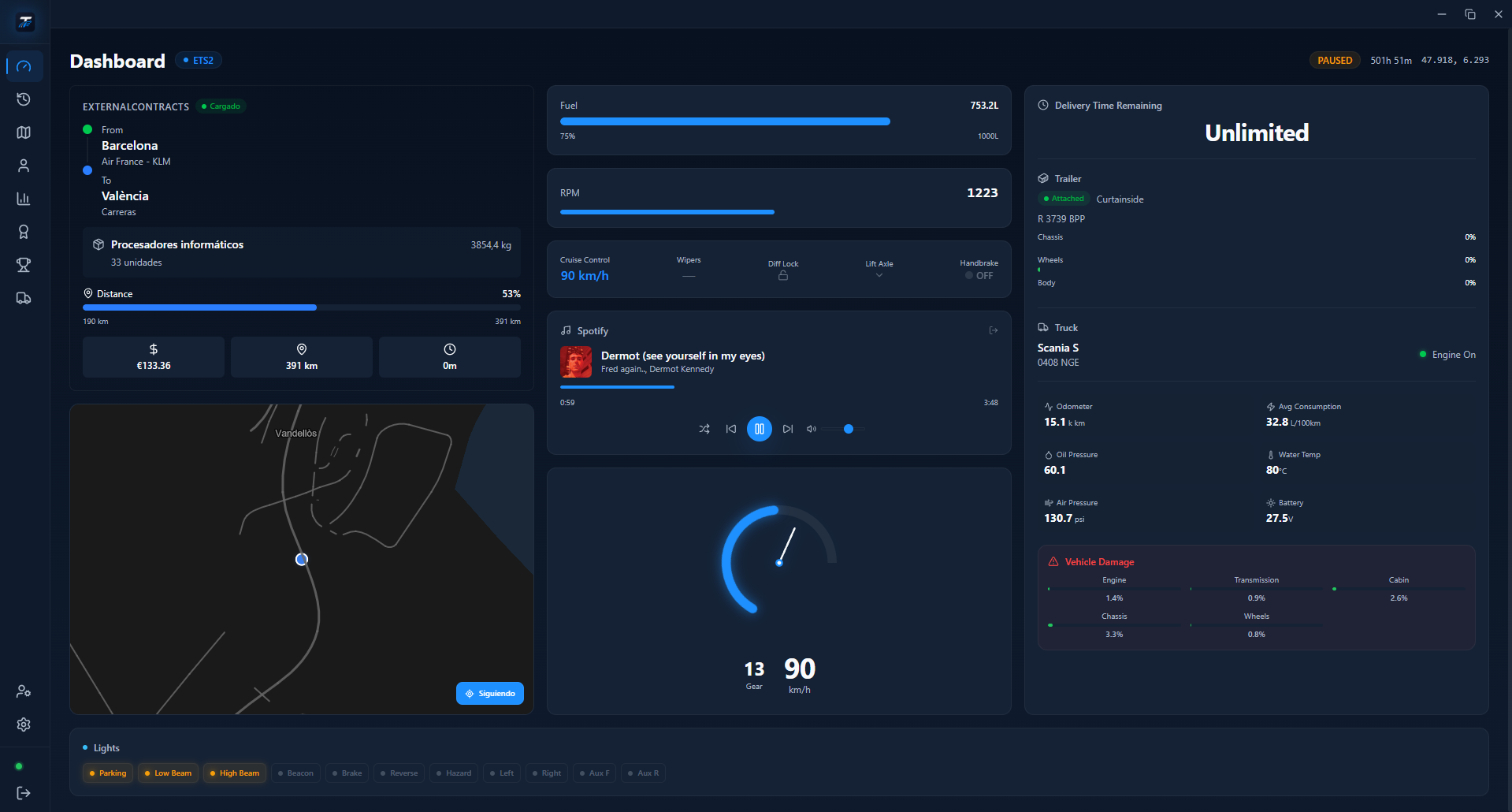
The game's HUD is small on purpose so it doesn't cover the road. On a second monitor you can show the same data larger, add information the game doesn't show and turn the in-game HUD off for a cleaner view. It makes most sense if you drive with a wheel and want something closer to a real cab.
The options
- A second monitor on the same PC with a dashboard app such as Truckly
- A tablet or phone that opens a web dashboard served by a telemetry server on your PC, with both on the same network
- Sim-racing tools such as SimHub, which include dashboards for ETS2 and ATS
- Dedicated hardware displays driven by the same telemetry
All of them rely on the game's telemetry SDK, so they need a plugin installed in the game. Our guide to ETS2 telemetry explains how that works.
Step by step with Truckly
- Download and install Truckly. The installer adds the telemetry plugin to ETS2 and ATS.
- In Windows display settings, choose Extend these displays so the second monitor works as extra desktop space.
- Open Truckly, go to the dashboard and drag the window to the second monitor.
- Start the game and take a job. The dashboard fills in live as soon as you start driving.
Tips
- If the game minimises when you click on the other monitor, switch it to windowed mode in the graphics settings.
- Hide the in-game HUD elements you no longer need to free up the road.
- Connect Spotify in the dashboard to see your music; controlling it needs Spotify Premium.
- Keep the map open next to the dashboard to see your route and your truck live.